Yesterday, my brand-new Cricut machine arrived. I had been seeing all these beautiful handmade cards, labels, and customized mugs online, and I thought, “Why not give it a try?” However, the moment I opened the box, my confidence dropped. Inside, I found cables, unfamiliar tools, and a machine that looked far more complicated than I had anticipated. I expected setting up the Cricut machine to be simple, but it turned out to be more complex than I had thought. After taking a few moments to relax, I began to wonder if I had made a mistake. I then decided to approach the setup process step by step, maintaining a calm mindset. Eventually, I figured everything out.
In this guide, I’ll explain “how to setup your Cricut machine” in the best way possible. Whether you’re using a computer or a phone, or trying either USB or Bluetooth for connection, refer to this post for guidance.
What Do I Need to Get Started With a Cricut?
To get started with your crafting machine, you’ll need the following essentials:
- The Cricut machine itself.
- You’ll need the Cricut Design Space software (available for desktop and mobile) to create an account.
- A cutting mat helps hold your material in place while cutting. Different mats are available for various materials (e.g., LightGrip, StandardGrip, or FabricGrip).
- Basic tools include a scraper, tweezers, scissors, and a weeding tool.
- Select materials based on your project needs, such as vinyl, paper, cardstock, fabric, or iron-on.
Steps to Set Up Your New Cricut Machine
If you’re planning to set up your new Cricut machine, you first need to install the Cricut Design Space software on your device, then sign in or create a new account. Once you’ve signed in successfully, you can proceed to set up your machine and connect it via Bluetooth or USB. Finally, perform a test cut.
Step 1: Install Design Space
Cricut Design Space is the app that tells your machine what to do. It’s like a remote control for your cutting projects.
On Windows/Mac
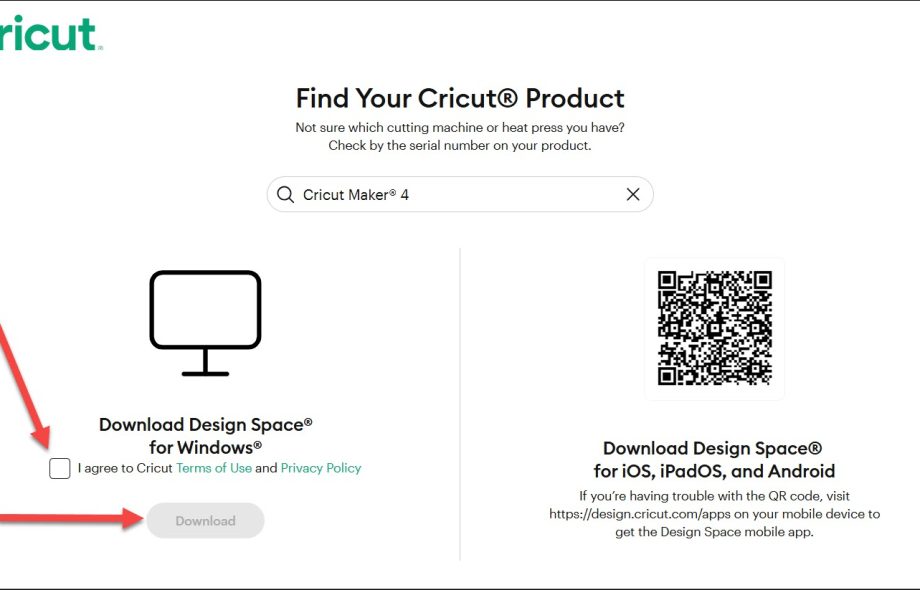
- First, open your browser and visit Cricut.com/setup.
- Enter your machine model, then click the Download button to start downloading the installer file.
- After downloading, go to your Downloads folder and double-click the file to begin installing.

- If a prompt appears, permit the app to make changes, then follow the instructions that appear on the screen to finish the installation.
On iOS/Android
- On your smartphone, open the App Store or Play Store.
- Search for Cricut Design Space.
- Tap “Get” or “Install” and wait for the download to complete.
Tip: The app is free to download. If it asks for permissions such as Bluetooth or storage access, tap “Allow” to proceed.
Step 2: Create a Cricut Account
To use your machine, you need to create a free account.- If you’re using a web browser, go to the official website cricut.com/setup. If you’re using the app, open it on your device.
- Tap or click on Create a Cricut ID or Create Account.
- Enter your email, name, country, and a password you’ll remember.
- Next, you’ll also need to agree to the terms of use.
- Once you’ve entered all the required information, click on the Create Cricut ID or Sign In button to finalize your account creation.
- A verification email might be sent – go to your inbox and click the link to confirm.
Step 3: Set Up Your Cricut Machine
- Go to design.cricut.com or open the Cricut Design Space app.
- Select your profile image and choose the Settings option from the dropdown menu.
- After that, tap on the Machines tab.
- Next, select the Start button beside the New Product Setup option.
- Select the appropriate model from the list available.
- Now, the software will prompt you with the setup guide; follow the instructions carefully.
Step 4: Connect the Machine to Your Device
You have two options for connecting your machine: Bluetooth (wireless) or a USB cable (wired). To connect your machine to your device, follow these steps:- Plug the power cord into the machine and a wall outlet.
- Press the power button (mostly on the right side).
- Indicator lights and a startup sound will confirm your machine is powered on and functioning.
Method 1: Wireless Connection (Bluetooth)
- Ensure your device has Bluetooth enabled.
- Go to Settings and then Devices.
- After that, click on “Add Bluetooth or other device” and then select “Bluetooth.”
- Now, select your machine model.
- Enter the PIN 0000 if asked.
Method 2: Wired Connection (USB)
- You have to plug the USB cable into your computer and the machine.
- Design Space should automatically detect it.
Step 5: Perform a Cut Test
Once your machine is connected, the app will likely guide you through a first project, typically a test cut, such as a simple shape.- Place the sample material onto the cutting mat (sticky side up).
- Insert the mat by pressing the Load button (marked with double arrows).
- Press the flashing C when you’re ready to cut.
Troubleshooting Cricut Machine Setup Issues
If your new machine is experiencing setup issues, such as:Issue 1: Machine Not Showing up in Design Space
- Make sure your device has a steady network connection, especially if you’re using a cloud-based project.
- Make sure the machine is powered on and the USB or Bluetooth connection is secure.
- Try restarting both your machine and the device (computer, phone, tablet) you’re using with Design Space.
- Verify that Design Space is updated to the latest version.
Issue 2: Bluetooth Not Connecting
- If you’re using Bluetooth, try unpairing the machine from your device’s Bluetooth settings and then re-pairing it.
- Ensure that no other devices are actively connected to the machine via Bluetooth, as this may interfere with the connection.
- Make sure the machine and your device are within the recommended Bluetooth range (10-15 feet).
- Check for any obstructions that might be interfering with the Bluetooth signal.
Issue 3: Error Messages During Setup
- Make sure you’re using the latest version of Cricut Design Space.
- If using the web version of Cricut Design Space, clear your browser’s cache, cookies, and browsing history.
- Ensure the material is properly secured on the cutting mat and that the mat is not damaged.
- Check for any obstructions inside the machine.
Frequently Asked Questions (FAQs)
How hard are Cricut’s to use?
Cricut machines are generally considered easy to use, especially for beginners. Cricut’s Design Space software makes crafting easier by providing clear, step-by-step instructions. It provides step-by-step instructions for choosing materials, cutting tools, and mats, making the process straightforward.
The machine setup is also relatively simple, with Design Space guiding users through the process. By the way, choosing the right material setting for a particular project can require some trial and error, especially for more advanced projects.
Does my Cricut need to be connected to Wi-Fi?
No, your crafting machine does not require a constant Wi-Fi connection to operate. Cricut machines connect via Bluetooth or USB cable to your computer or mobile device, not Wi-Fi. While you need to be online to initially set up the machine, download designs, and access certain features in Cricut Design Space, you can use the machine offline after the setup is complete. You’ll need an internet connection to search for and download new images, fonts, and projects.
 :
https://www.reddit.com/user/cricutcut
:
https://www.reddit.com/user/cricutcut