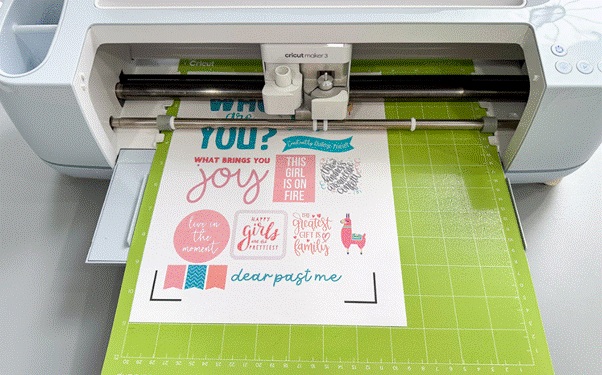
Cricut is a brand that offers versatile crafting machines, enabling professionals and hobbyists to create stunning DIY projects. Creating with Cricut has become a passionate pursuit for many. Therefore, beginners are also starting to craft their own projects using the Cricut machine. In this blog, we’ll guide you through the learning process of operating the crafting machine, starting with one of the most demanding requests for beginners: how to make stickers with Cricut. So, without further ado, let’s dive into this and start crafting!
Essential Tools and Materials for Making Cricut Stickers
Before you start making stickers with your machine, gather the following tools and accessories to ensure a smooth crafting process and get high-quality results.
- Cricut Machine
- Printer
- Cutting Mat
- Printable Sticker Paper
- Printable Clear Sticker Paper
- A4 Printable Vinyl Sheets
- Cricut Design Space (Windows, Mac, Android, or iOS)
How to Make Stickers With Cricut? [6 Simple Steps]
Here are the basic steps for creating custom stickers with your crafting machine, which cover everything from setting up your design to printing, cutting, and peeling your stickers for use on different surfaces.
Step 1: Setup Your Design in Cricut Design Space
- First, open the Cricut Design Space app on your device and create a new canvas. (Uploading a design can simplify the process for beginners.)
- Second, create your sticker designs and flatten any multi-layered elements. This ensures your machine treats them as a single printable image. Then, you’re ready to print and cut.
- Third, create a template and put a 6.75 x 9.25-inch square from the shapes library onto that template.
- Once you arrange this much, remove the square from the canvas.
- Next, select all the images on the sheet and group them. This step ensures their positions are locked, preparing them for printing and cutting.
Step 2: Prepare Your Design for Print Then Cut
- Click on “Make It.” Your designs will appear inside a lined box, which acts as a guide for the Cricut’s cutting sensors. (Note: the sensors on your machine will print and read this black box, helping it know precisely where to make those important cuts.)
- Next, select “usual” as your machine cutting type, then click “Print.”
- On the next print screen, you’ll see the option to add or remove bleed. (Choosing this will create a margin around your sticker designs.)
- Also, you can adjust the print settings for optimal quality by selecting the “Use System Dialogue” option.
Step 3: Print Your Sticker Sheet
Load your printer with the correct printable material, ensuring it is positioned face up or face down as per your printer’s specifications for optimal print quality and accurate design alignment.
Step 4: Place the Printed Sheet on Mat

After the sheet is printed, place it onto a LightGrip cutting mat, aligning it with the top-left corner.
Step 5: Cut Your Stickers With Cricut
- Now, select the material you want to cut. In this step, you’ll set your machine to cut for a sticker, not always cutting all the way through.
- Once the machine successfully reads the sensor lines, it will automatically start cutting the stickers with precision, which ensures your designs are perfectly shaped and ready for use.
Step 6: Peel and Use Your Custom Stickers

Once the sticker is cut, the only thing left to do is carefully peel it off from the backing and stick it onto your desired surface, adding a personal touch to your projects or belongings.
Conclusion
The Cricut machine is a versatile device that enables you to create impressive crafts like stickers. This guide provided a step-by-step method on how to create stickers with Cricut. In the end, we hope you find this guide helpful and informative on how to make stickers with Cricut. However, if you encounter any trouble while creating a sticker, you are welcome to contact us for expert assistance with your issue.
Frequently Asked Questions (FAQs)
What Cricut Machines are Compatible with Create Sticker feature?
Making stickers is slightly more advanced than regular cutting because it uses the ‘Print Then Cut‘ feature. This means you’ll need a Cricut machine that supports print-then-cut, such as the Joy Xtra, Explore series, Maker series, and Venture. However, Cricut Joy is not compatible with sticker creation.
Is a Cricut Access plan necessary to use the Create Sticker feature?
You can preview the feature on Canvas and Mat Preview. However, a Cricut Access subscription is always required for cutting. If you lack Cricut Access, you can begin the free trial today and explore all the Cricut machine features.
Is Cricut Machine Good for making Stickers?
Yes, Cricut machines are great for creating custom stickers. They give precise cuts and handle different materials, including vinyl, printable paper, and sticker sheets. The Design Space app allows you to make designs and cut stickers accurately.
 :
https://www.pinterest.com/cricutcomcreate
:
https://www.pinterest.com/cricutcomcreate